

Meet Navi: Your 24/7 AI Instructor Inside the MLS Classroom
Unlock 24/7 access to Navi, an AI instructor trained on MLS course material, so you can ask questions, run practice quizzes, and nail your captain’s exam.
You’re studying for your captain’s license at 10 p.m. on a Tuesday. You hit a section on compass deviation, and the explanation isn’t clicking. You’re on your own.
That scenario is familiar to most online students. You’re motivated, you’re putting in the hours, and then you need a concept explained a different way at the exact moment no one is around to help.
That’s why Mariners Learning System built Navi.
Navi is an AI instructor available 24/7 inside your MLS online classroom. It pulls directly from your course material to answer questions, clarify topics, and keep you moving forward.
Most MLS students study on their own time: early mornings, late nights, weekends between shifts. Navi meets you in those moments, whether you’re reviewing before sunrise or working through practice problems after midnight.


Navi lives inside your MLS classroom and connects to your active course enrollment. When you open the chat, you’re talking to an AI instructor trained on the same content you’re studying.
Navi pulls only from Mariners Learning System course material, not outside resources. Every answer, explanation, and practice question aligns with your specific course content.
You can use Navi to:
Outside resources can create confusion, especially when they conflict with your classroom lessons. Navi sticks to your MLS course content, so you won’t run into that problem.
Use Navi for course-content questions. For account, billing, or technical support, contact MLS through the regular support channels.
You’ll get the most from Navi by asking clear, specific questions.
A vague question like “I don’t understand navigation” gives Navi less to work with. A specific question like “Can you explain the difference between true course and magnetic course?” provides the context Navi needs to deliver a detailed, useful response.
You can ask follow-up questions, too. Navi supports an ongoing conversation, so you can start with one question and build from there. Ask, review the response, and go deeper when needed.
After you complete a final proctored exam, Navi can generate a personalized study guide based on your performance.
Open Navi and type “Study Guide.” Navi will scan your exam results and create a focused breakdown of the topics you need to review more.
The guide doesn’t include your score, specific exam questions, or answers. It points you back into your course material so you can strengthen the areas that need attention.
Once the study guide is ready, you can:
The study guide works best alongside your full course, not as a stand-alone resource. Use it to direct your review sessions back to the right lessons and topics. Many students print the guide and check off each section as they complete their review.
Look for the navy-blue chat icon in the bottom-right corner of your classroom screen. Click the icon to open Navi and start typing your question.
A few details:
If you’re enrolled in an MLS course, Navi is already waiting in your classroom. Log in and try this:
That three-step sequence shows how Navi works as a study tool: question, explanation, practice. You can repeat that pattern with any topic in your course.
Specific questions get better answers. Start with the topic giving you trouble right now.
Navi is available to all MLS students with an active course enrollment. Every student gets access to Navi as part of their enrollment, along with the USCG-approved curriculum that’s helped thousands of captains earn their credentials.
If you haven’t started your captain’s license course yet, now’s a great time to enroll. You’ll get 24/7 access to Navi from day one.
Ask a question, share an experience, or add a helpful tip related to this article. Comments may appear after review to prevent spam.
Unlock 24/7 access to Navi, an AI instructor trained on MLS course material, so you can ask questions, run practice quizzes, and nail your captain’s exam.


Learn what questions to ask and how to prepare for a captain’s license drug test to ensure you avoid the most common application delays.
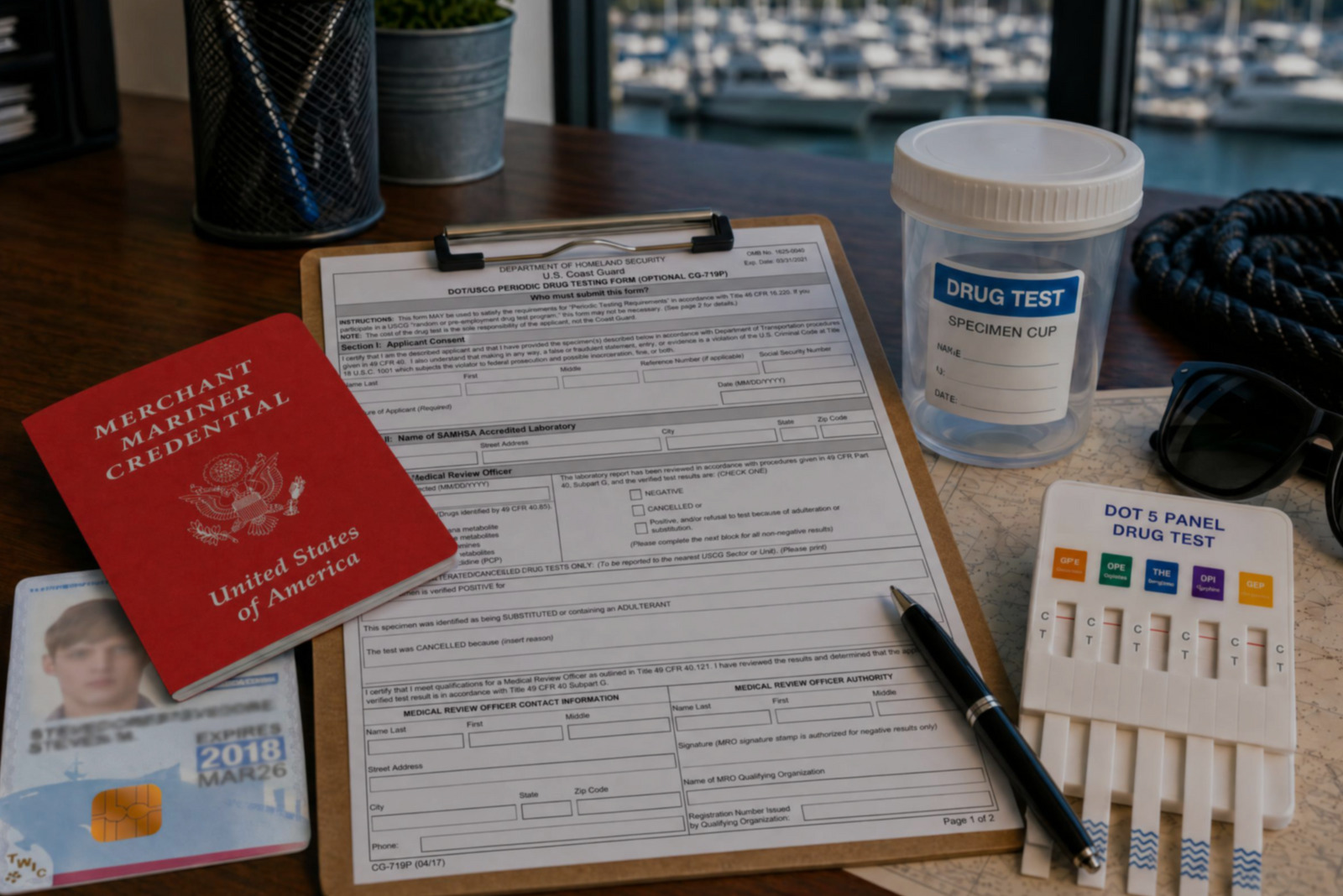

Discover the three types of drug tests working captains must submit to even after they’ve met the initial USCG drug testing requirements for their license.
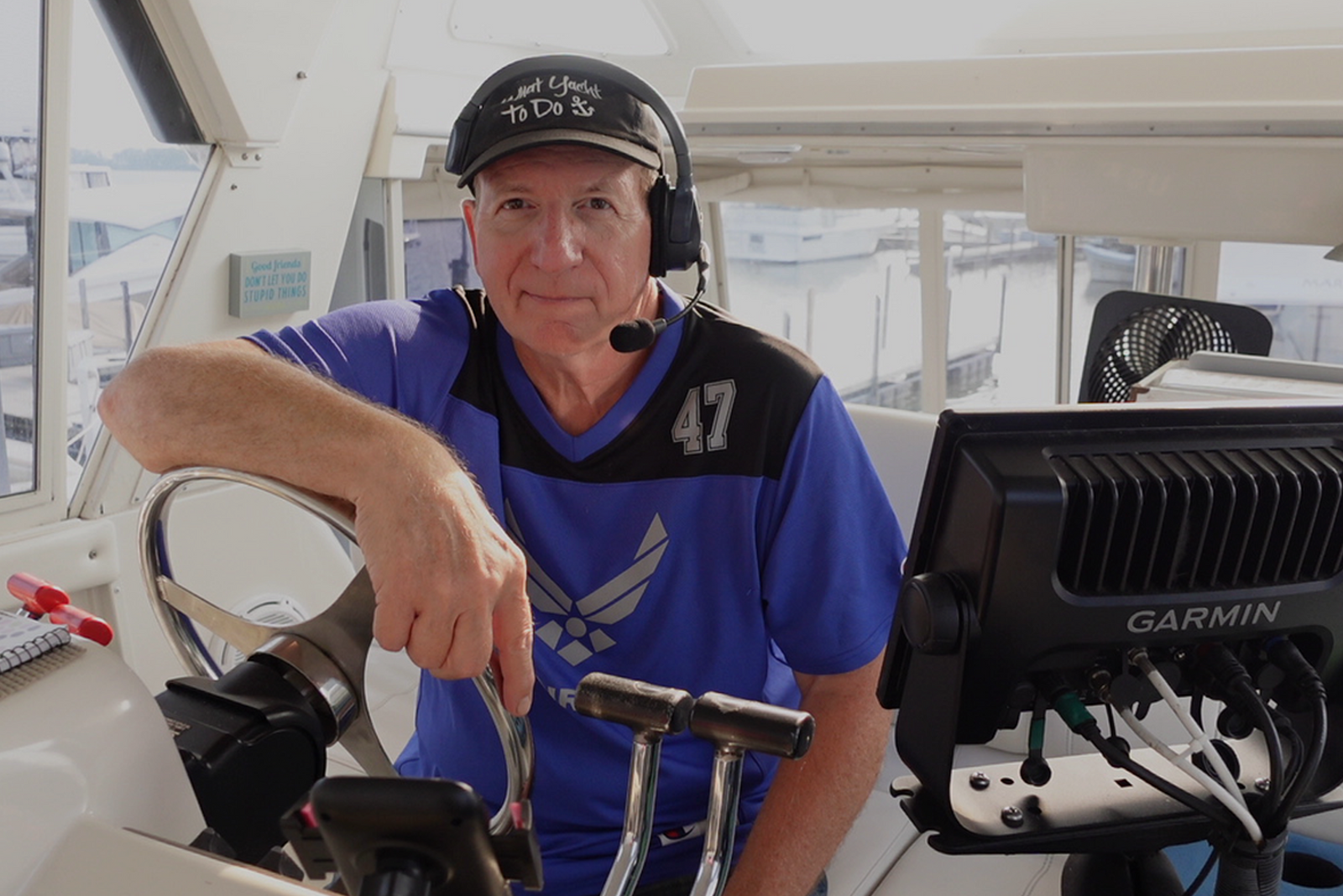

Discover how a retired airline pilot became obsessed with the Great Loop and built a thriving captain training business through Mariners Learning System.


Learn which substances the MMC drug test looks for, plus how masking agents and false positives factor in.


Discover the five most common mistakes mariners make on the captain’s license physical, plus a checklist for how to avoid them.
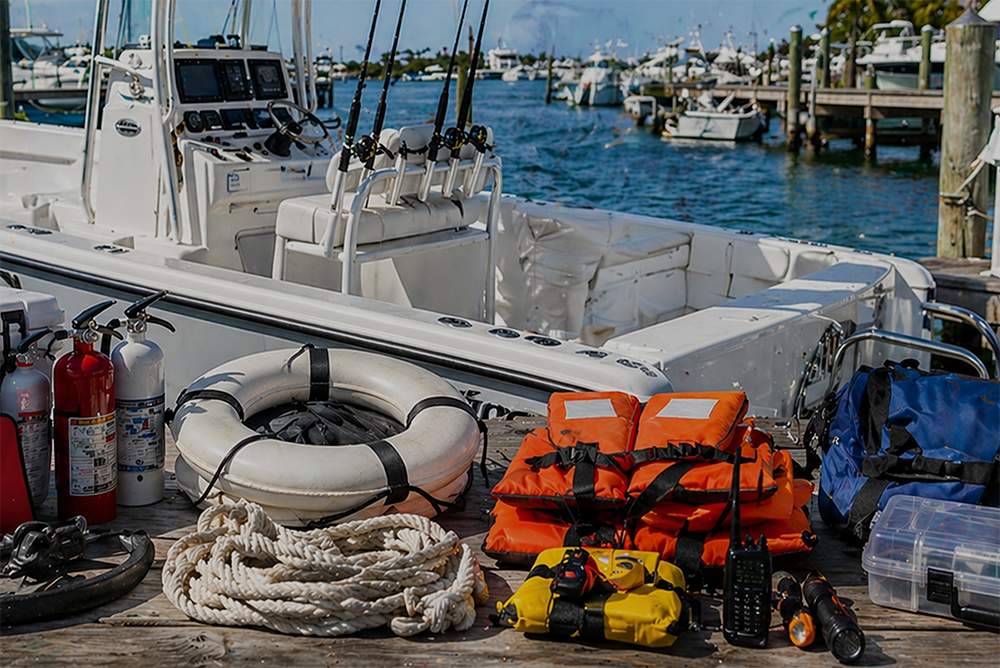

Discover why so many charter captains run out of money and how to plan every startup cost from your vessel purchase to guest-ready outfitting.

Learn how to build a charter business plan that covers pricing, expenses, and marketing so your captain’s license leads to lasting profit.


Transform how you talk about price with proven anchoring strategies and value-first framing that stops charter guests from shopping around.


Discover how charter captains use hybrid pricing models and seasonal adjustments to increase revenue and simplify bookings for every guest type.