

Meet Navi: Your 24/7 AI Instructor Inside the MLS Classroom
Unlock 24/7 access to Navi, an AI instructor trained on MLS course material, so you can ask questions, run practice quizzes, and nail your captain’s exam.
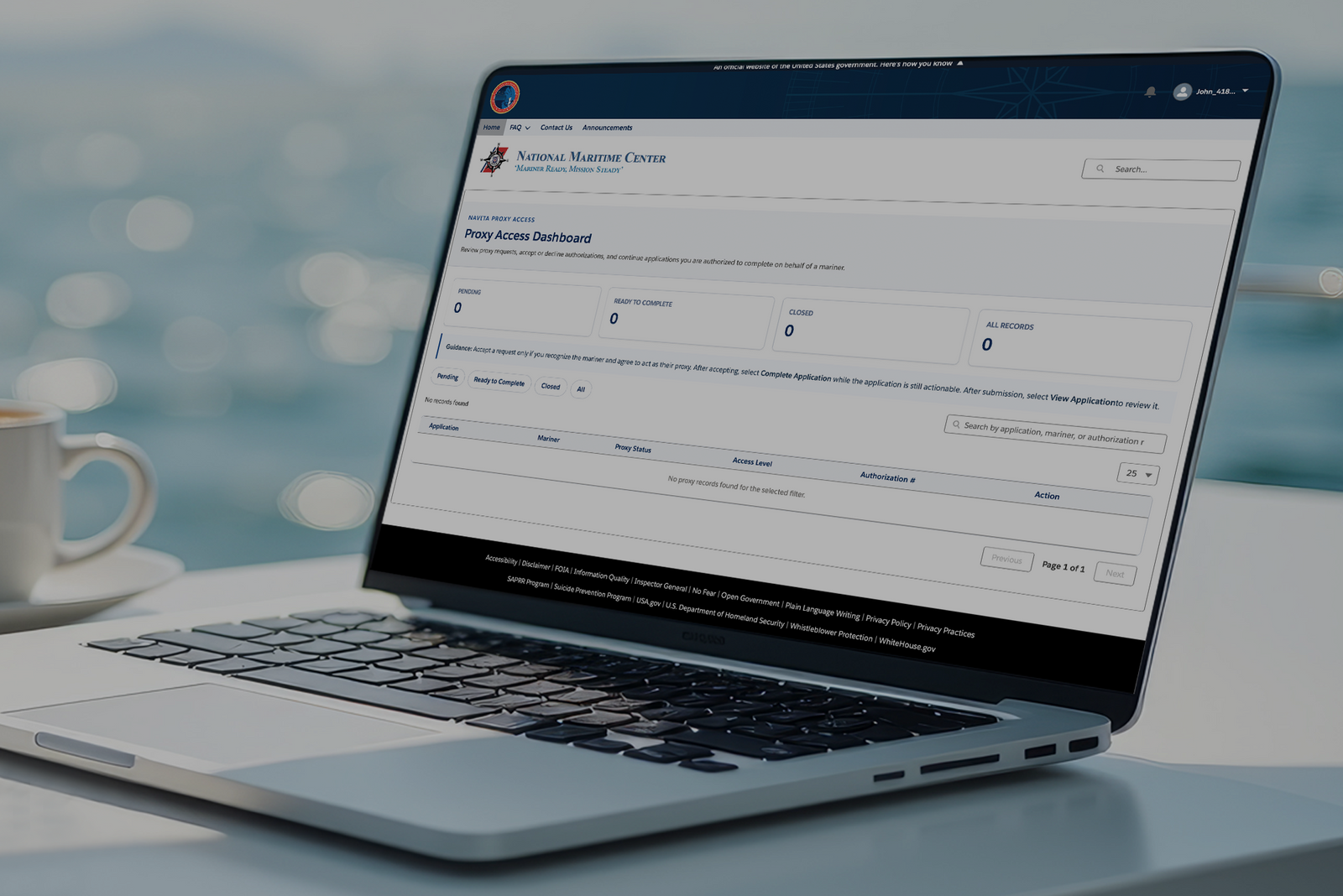

You submit your captain’s license application to the National Maritime Center (NMC) through the online Navita™ portal, the required method since September 14, 2026. Application Submission and Additional Information Portal (ASAP), email, and fax are no longer accepted. Complete the online MMC application, upload the required PDFs and Pay.gov receipt, then save your application reference number.
This article walks you through submitting your captain’s license application. For detailed instructions, follow the National Maritime Center's step-by-step PDF guide.
You finished the course and passed the proctored exam. The last step between you and your captain's license is getting your application packet to the Coast Guard the right way.
Send it the wrong way, and your packet sits unprocessed while your deadlines run down. Here's exactly where your captain's license application goes, what belongs in it, and how to submit it.
The National Maritime Center (NMC), the division of the Coast Guard that reviews and issues mariner credentials, receives every captain's license application. The submission method changed in September 2026, and the old methods, such as the online ASAP process, email addresses, and fax numbers, no longer work. Sending your packet the old way now results in it being bounced rather than processed.
If you've read older guides that tell you to submit via another method, that advice is outdated.
If you want the bigger picture first, our walkthrough of what happens after passing your exam shows where submission fits in the journey.
The Navita™ Mariner Portal guides you through the CG-719B application, fee payment, document uploads, and final submission. Instead of uploading one finished captain's license packet, you complete the MMC application in Navita™ and use its requirements checklist to attach each supporting document where the Coast Guard requests it.
Before you begin, gather your personal information, the captain's license endorsements you are requesting, any conviction or driving-offense details you must disclose, your supporting documents saved as PDFs, and a payment method for Pay.gov. If the Coast Guard has credentialed you before, have your Mariner Reference Number available.
Follow these steps:
Go to the Navita™ Mariner Portal and click "Create Account/Sign In". Once on Login. gov, you will create an account if you have not done so in the past, or sign into an existing account. You use one Login.gov account for one Navita™ account. A single Login.gov account works across federal services: if you already use one for the IRS or the VA, sign in with it rather than creating a second.
Complete My Account and confirm that your legal name, contact information, and other personal details are correct. Navita™ uses this information in the applications you start.
From the home page, select Merchant Mariner Credential (MMC) (719B). This is the correct application for a captain’s license. You will be uploading your physical, CG-719K, through the second option on the home page: Medical Certificate (719K/719KE), so don't forget this step afterward.
Once on the Applicant Information page, complete Section I: Applicant Information, Applicant Address and Contact Information, and Next of Kin Emergency Contact (optional).
Choose the transaction type that matches your request, such as a first credential, renewal of current credential (you are renewing exactly what you hold, with no changes), add/upgrade endorsement(s) (raise in grade, a change of scope, or a new endorsement, and you are not renewing), renewal with add/upgrade/remove endorsement(s) (you are renewing and changing your endorsements at the same time), replacement/duplicate credential (your credential was lost, stolen, or damaged), or document of continuity.
Add the captain’s license endorsement you want. Select the appropriate capacity, route, tonnage, propulsion, and vessel limits that apply to your request.
Complete the safety, suitability, consent, and electronic-signature sections. The National Driver Registry consent is mandatory for an original credential, a renewal, or a new officer endorsement. It is not required for a Document of Continuity. If you disclose a conviction or drug-related record, Navita™ may direct you to complete the CG-719C and upload supporting documents.
Answer the remaining sections in Merchant Mariner Credential (MMC) (719B). Note: Mariners Learning System is NOT a third-party. Do not put our information down for this section.
Review the completed CG-719B information before moving to the fee section.
Review your fee; the application shows the breakdown of the fees you owe and the total due. Select Pay Fees to continue to Pay.gov. After paying, download the Pay.gov receipt as a PDF, return to Navita™, and upload the receipt on the Fees page. You may be waived from paying a fee if you are a volunteer or employee of a charitable, non-profit, or youth-oriented organization, on active duty in a U.S. uniformed service, or in the Selected Reserve of a military reserve component, or the Public Health Service Ready Reserve Corps.
Work through the application requirements checklist. Upload each required supporting document to the location shown for that requirement. PDF files only. If an upload fails, check the file type and that the file is within the size limit shown on the page.
When the checklist has no outstanding required items, and your fee is complete, select Submit Application. The button will not appear if even one requirement is missing.
Navita™ confirms on screen that the application was submitted successfully.
Select Finish, then save the application reference number shown at submission, then download a PDF copy of your completed forms for your records. Keep those forms with your Pay.gov receipt.
Navita™ saves your progress each time you select Next. If you leave before finishing, return through My Applications and continue the existing draft. Do not start a second application for the same request; Navita™ allows only one active MMC application at a time.
Your Medical Certificate requires a separate application from your Merchant Mariner Credential. Before your physical, begin your Medical Certificate application in Navita™ so you can print the required form and bring it to your appointment.
Complete these steps in Navita™:
From the home page, select Medical Certificate (719K/719KE).
Select "Officer" for the credential you are applying for.
When asked which medical certificate form you need, select CG-719K.
Complete the online sections, including your personal information, medical conditions, medications, applicant signature, and consent.
After completing every online section, download and print the form. Take it to your medical examination.
Your medical provider performs the examination, completes the applicable sections, and signs and dates the form where indicated.
Return to Navita™ and upload the completed, signed form.
The medical provider does not complete the form inside Navita™. You complete your sections online first, print the form for the provider, and upload the finished document after the examination.
Navita™ accepts supporting documents as PDFs. Screenshots and image files will not upload, even when the information is readable. If you get an error when uploading your PDF, check the size limit displayed in the portal before uploading each file.
After you select Submit Application, Navita™ displays an on-screen confirmation and gives you an application reference number. Record that number before closing the portal. Download your completed forms and keep them with your Pay.gov receipt.
Selecting Download does not submit your application. Your application reaches the NMC only after you select Submit Application and receive the submission confirmation.
Navita™'s role ends when you submit your application. The National Maritime Center then moves the application and supporting documents into its existing system for review.
Every application has a record page. The status appears beneath the application name in the top-left corner, and the tabs across the page hold everything associated with it. The record page is where you go after submission to check the status, respond to an NMC request, or download a copy of your forms.
If the NMC needs another document, sign in to Navita™ and create a case from Contact Us. Explain what the document is and identify the application it belongs to. After creating the case, open the case record and attach the requested PDF under the Files tab. NMC staff will connect the case to your application.
Submit as soon as you have completed the course, passed the proctored exam, and assembled every required document. Your Mariners Learning System Certificate of Completion is valid for one year from the date you pass your final exam, so applying early gives you time to respond if the NMC needs clarification or an additional document.
Most submission problems come from a few preventable mistakes:
Starting a second application instead of returning to the existing draft in My Applications
Selecting the wrong MMC transaction type or the wrong captain’s license endorsement
Entering an incorrect Social Security Number, Alien Registration Number, or Mariner Reference Number
Trying to upload a photo or screenshot instead of a PDF
Paying through Pay.gov but failing to download and upload the PDF receipt in Navita
Leaving a required checklist item outstanding. The Submit Application button appears only after every required item is satisfied, and the fee requirement is complete.
Selecting Download and assuming the application has been submitted
Starting a new application when the NMC asks for more information, instead of creating a signed-in case and attaching the requested document to the case record
Failing to save the completed forms, Pay.gov receipt, and application reference number after submission
A complete original captain’s license application includes information you enter directly into Navita™ and supporting documents you upload as PDFs. 46 CFR 10.225 outlines the Coast Guard’s requirements, while Navita™ provides a personalized checklist showing what your application still needs.
|
Application Item |
How It Is Completed |
Where It Goes in Navita™ |
|
CG-719B (Application for a Merchant Mariner Credential) |
Complete the application online |
Merchant Mariner Credential (CG-719B) application |
|
CG-719S (Small Vessel Sea Service) |
Complete outside Navita™ and upload as a PDF |
Merchant Mariner Credential (CG-719B) application |
|
CG-719C (Conviction Statement, if required) |
Complete in Navita™ when prompted and upload any required supporting documents |
Merchant Mariner Credential (CG-719B) application |
|
CG-719P or other acceptable drug-testing documentation |
Complete outside Navita™ and upload as a PDF |
Merchant Mariner Credential (CG-719B) application |
|
TWIC Card copy |
Complete outside Navita™ and upload as a PDF |
Merchant Mariner Credential (CG-719B) application |
|
Complete outside Navita™ and upload as a PDF |
Merchant Mariner Credential (CG-719B) application |
|
|
Complete outside Navita™ and upload as a PDF |
Merchant Mariner Credential (CG-719B) application |
|
|
Pay through Pay.gov, download the official receipt, and upload it as a PDF |
Merchant Mariner Credential (CG-719B) application |
|
|
CG-719K (Medical Certificate) |
No |
Medical Certificate (CG-719K/CG-719K/E) application |
For a line-by-line view of the forms your packet needs, keep that checklist open while you assemble your files.
No. The medical certificate is handled on a separate track from your credential documents. Keep the CG-719K out of the main MMC upload so neither file gets delayed waiting on the other.
In Navita™, you can save and resume a draft, download copies of your forms, or withdraw an application.
Navita™ saves your progress each time you select Next, so you can leave and return without losing the information you entered.
To resume an application, sign in and select My Applications from the home page.
Medical Certificate application: Select the Application ID beneath the application name. When Navita asks whether you want to continue your existing application, select the option to continue.
After reviewing a completed form, select Download in the top-right corner and choose PDF.
Keep copies of:
Every completed form
Your Pay.gov receipt
Your application reference number
Keeping these records makes it easier to respond if the National Maritime Center asks for more information.
You can withdraw an MMC or Medical Certificate application, but withdrawing is final and stops all processing. If you decide to apply later, you must submit a new application and begin the process again.
To withdraw an application:
Open the application’s Details page.
Select Withdraw Application in the top-right corner.
Enter your reason for withdrawing in the required field.
For an MMC application, select the acknowledgment checkbox. Medical Certificate applications do not include this checkbox.
Select Withdraw Application in the confirmation window.
You will return to the application’s Details page, where its status will appear as Withdrawn.
A complete original captain’s license application may be processed in approximately four to six weeks, but the Coast Guard recommends allowing up to three months. Processing times vary based on application volume and whether the National Maritime Center requests corrections or additional documents.
Submit your application at least 90 days before your Mariners Learning System Certificate of Completion expires. This gives you time to respond to the NMC without risking the expiration of your course credit.

The Coast Guard will mail your Merchant Mariner Credential, while your Medical Certificate is generally delivered digitally by email. These credentials may be issued at different times. You must have both your valid Merchant Mariner Credential and Medical Certificate before operating commercially.
We map the full sequence in our guide to the captain’s license timeline.
Aim for at least 90 days before your Certificate of Completion expires. Submitting early leaves time to answer follow-up questions or replace a document without risking the loss of your course credit due to an expiration date.
No. Since January 26, 2026, the NMC has discontinued email submission. Email and fax submissions are returned, which costs you days you may not have before your Certificate of Completion expires.
Although paper applications will still be accepted, the Coast Guard intends to phase out this submission method by September 2027.
Handwritten forms are acceptable when PDF is permitted, as long as the NMC staff can read and understand them.
You have completed your course and passed the proctored exam. The next step is submitting complete Merchant Mariner Credential and Medical Certificate applications through Navita™, with the required information, documents, signatures, and Pay.gov receipt.
Approach the process like a pre-departure checklist: gather your documents, confirm that each form is complete, and upload every PDF where Navita™ directs you. Submit at least 90 days before your Mariners Learning System Certificate of Completion expires so you have time to address any questions or missing information.
Ready to take the next step toward becoming a licensed captain? Gather your documents and begin your application in Navita.
If you have questions about preparing your captain’s license application, the Mariners Learning System team is here to help. We’ve guided more than 200,000 students through the licensing process, and we’ll help you understand what you need to keep moving forward.
Ask a question, share an experience, or add a helpful tip related to this article. Comments may appear after review to prevent spam.
Unlock 24/7 access to Navi, an AI instructor trained on MLS course material, so you can ask questions, run practice quizzes, and nail your captain’s exam.


Learn what questions to ask and how to prepare for a captain’s license drug test to ensure you avoid the most common application delays.
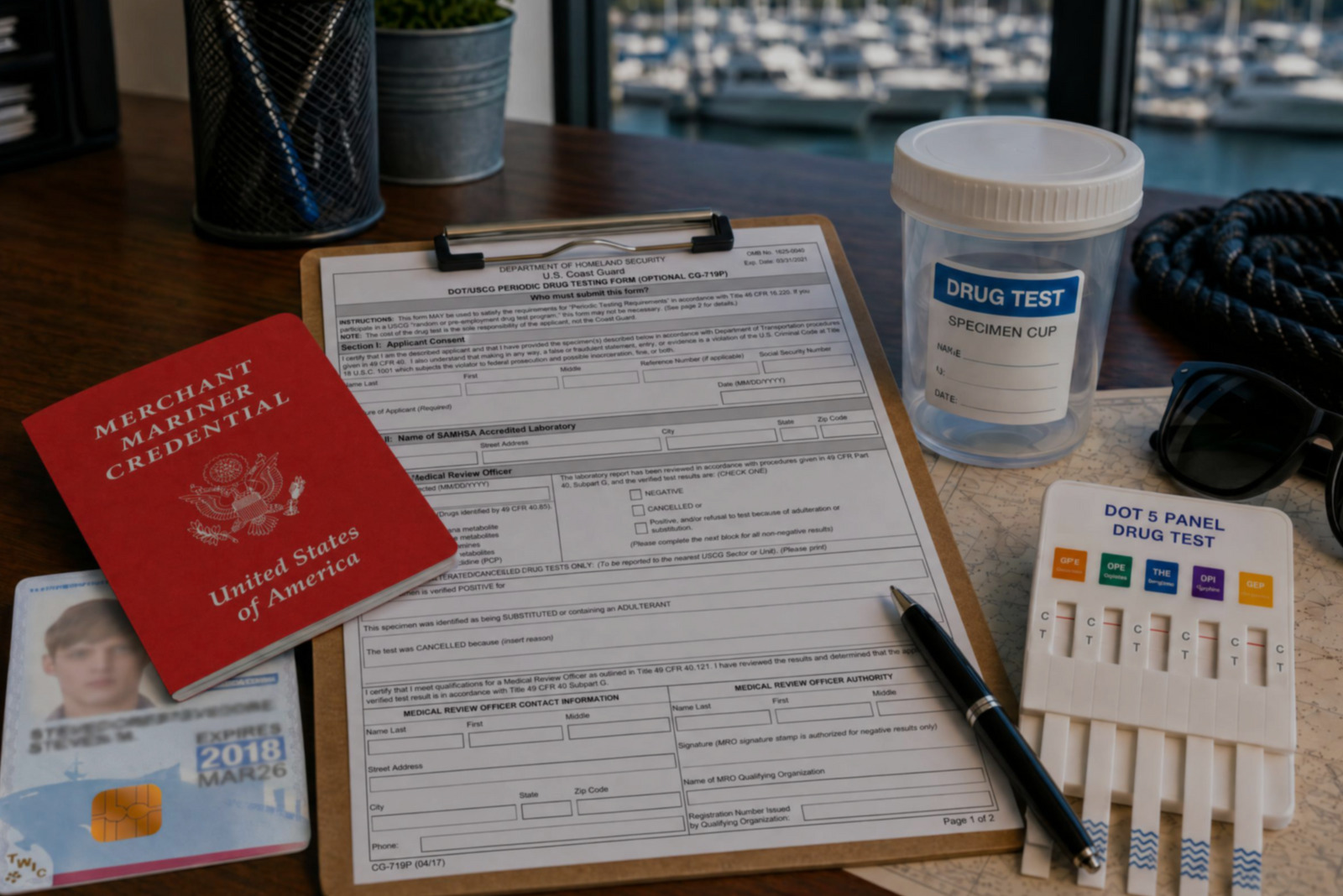

Discover the three types of drug tests working captains must submit to even after they’ve met the initial USCG drug testing requirements for their license.
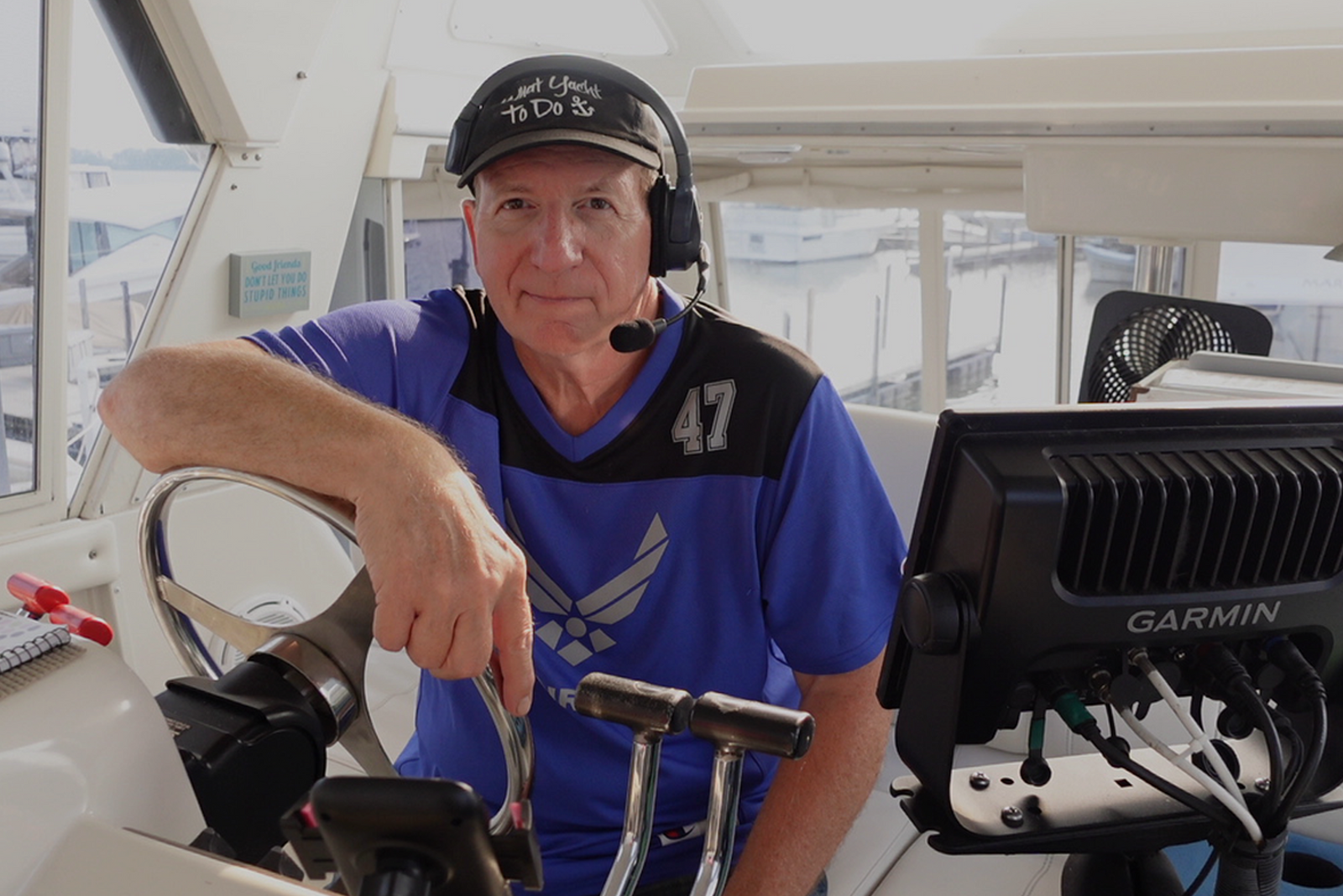

Discover how a retired airline pilot became obsessed with the Great Loop and built a thriving captain training business through Mariners Learning System.


Learn which substances the MMC drug test looks for, plus how masking agents and false positives factor in.


Discover the five most common mistakes mariners make on the captain’s license physical, plus a checklist for how to avoid them.

Discover why so many charter captains run out of money and how to plan every startup cost from your vessel purchase to guest-ready outfitting.

Learn how to build a charter business plan that covers pricing, expenses, and marketing so your captain’s license leads to lasting profit.

Transform how you talk about price with proven anchoring strategies and value-first framing that stops charter guests from shopping around.

Discover how charter captains use hybrid pricing models and seasonal adjustments to increase revenue and simplify bookings for every guest type.